How a sale runs, from first lot to final payout

Every sale moves through the same six statuses. At each step AuctionZu carries the record forward, checks what must be true before the next step, and leaves you only the decisions that need a person.

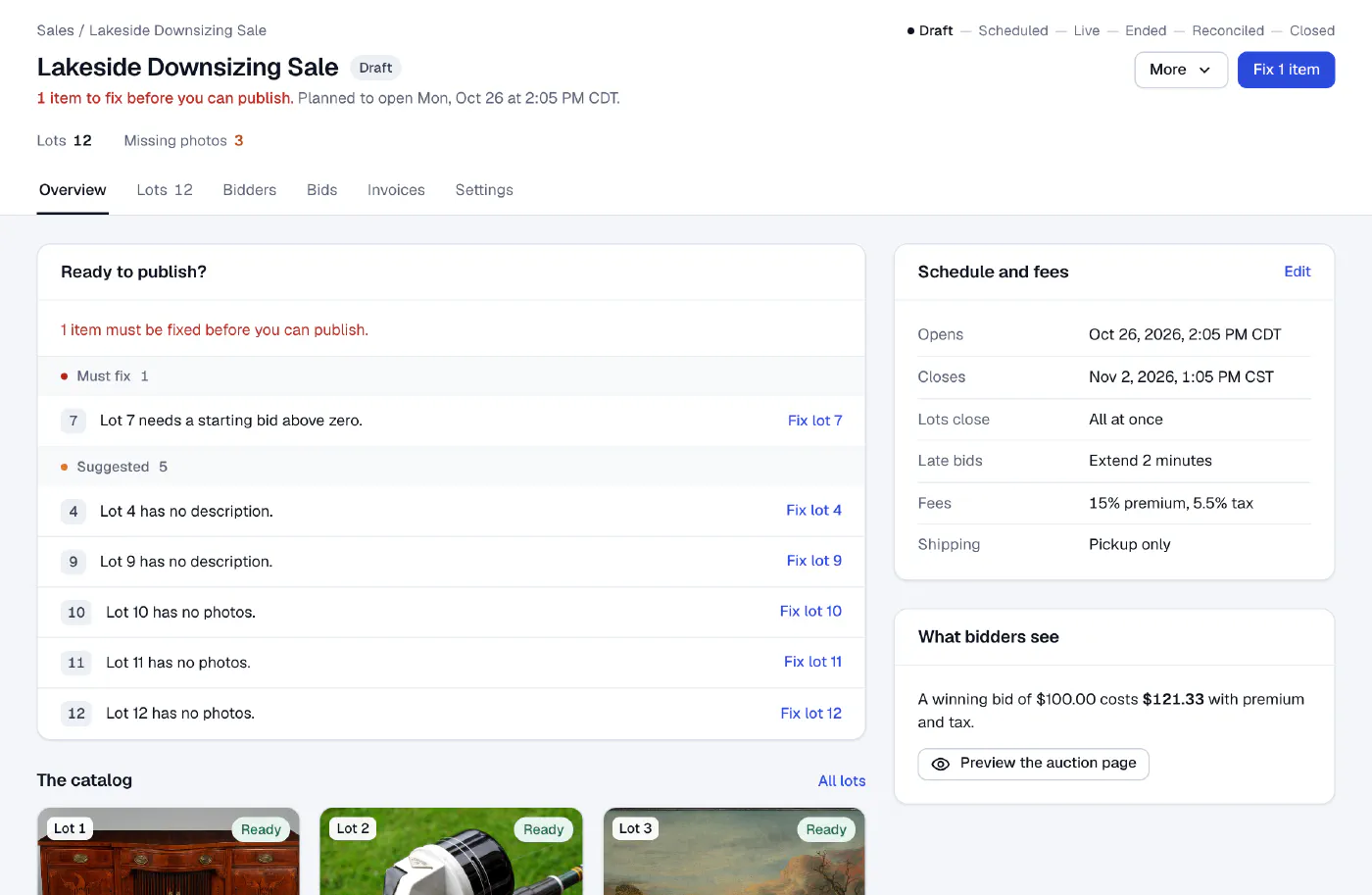
A draft sale in the console, with its status path across the top (draft, scheduled, live, ended, reconciled, closed) and a Ready to publish checklist.

Sale status

Every sale follows the same path

Each step is either yours or automatic, and the money steps are blocked until the money is done.

Sale statusEvery sale follows this path
1Draft

Publish: checks pass

You
2Scheduled

Opening time arrives

Automatic
3Live

The last lot closes

Automatic
4Ended

Reconcile: every invoice settled

You
5Reconciled

Close: every statement final

You
6Closed

CanceledA draft or scheduled sale can be canceled, or a scheduled one moved back to draft, before bidding opens.

Draft to scheduled to live to ended to reconciled to closed. Reconciling and closing are blocked until the money and the consignor statements are done.

You make the calls. AuctionZu does the work in between.

A timed sale is five stages and a lot of handoffs. AuctionZu carries the record from one stage to the next, so the only work left on your desk is the work that needs your judgment.

  1. 1Prepare

    You decide

    • Add lots or import a spreadsheet
    • Set dates, fees and pickup terms
    • Publish

    AuctionZu handles

    • Checks every imported row before saving
    • Blocks publishing until required details are fixed
    • Locks the bidding rules and fees at publish
  2. 2Run

    You decide

    • Approve or deny bidders
    • Keep an eye on lots below reserve

    AuctionZu handles

    • Checks every bid on the server
    • Runs proxy bids up to each bidder's private maximum
    • Extends a lot when a late bid lands
    • Sends outbid and won notices
  3. 3Close

    You decide

    • Accept or pass each below-reserve lot
    • Issue the invoices

    AuctionZu handles

    • Determines the winner of every lot
    • Drafts each buyer's invoice with fees and tax itemized
    • Totals sell-through and hammer for the sale
  4. 4Collect

    You decide

    • Record cash, check or transfer payments
    • Hand over lots at the pickup desk

    AuctionZu handles

    • Records card payments as buyers pay online
    • Holds pickup until the balance is zero
    • Flags disputes with their response deadline
  5. 5Settle

    You decide

    • Add fees or credits
    • Finalize and pay the consignor

    AuctionZu handles

    • Builds each statement from sales and payments
    • Warns when a sold lot is still unpaid
    • Keeps a tamper-evident history of every change

Each stage, as your team sees it.

1Prepare

Build the catalog. Publish when it is actually ready.

Bring in lots by hand or from the spreadsheet you already keep. Before anything goes live, the sale tells you exactly what is missing and links you straight to the lot to fix.
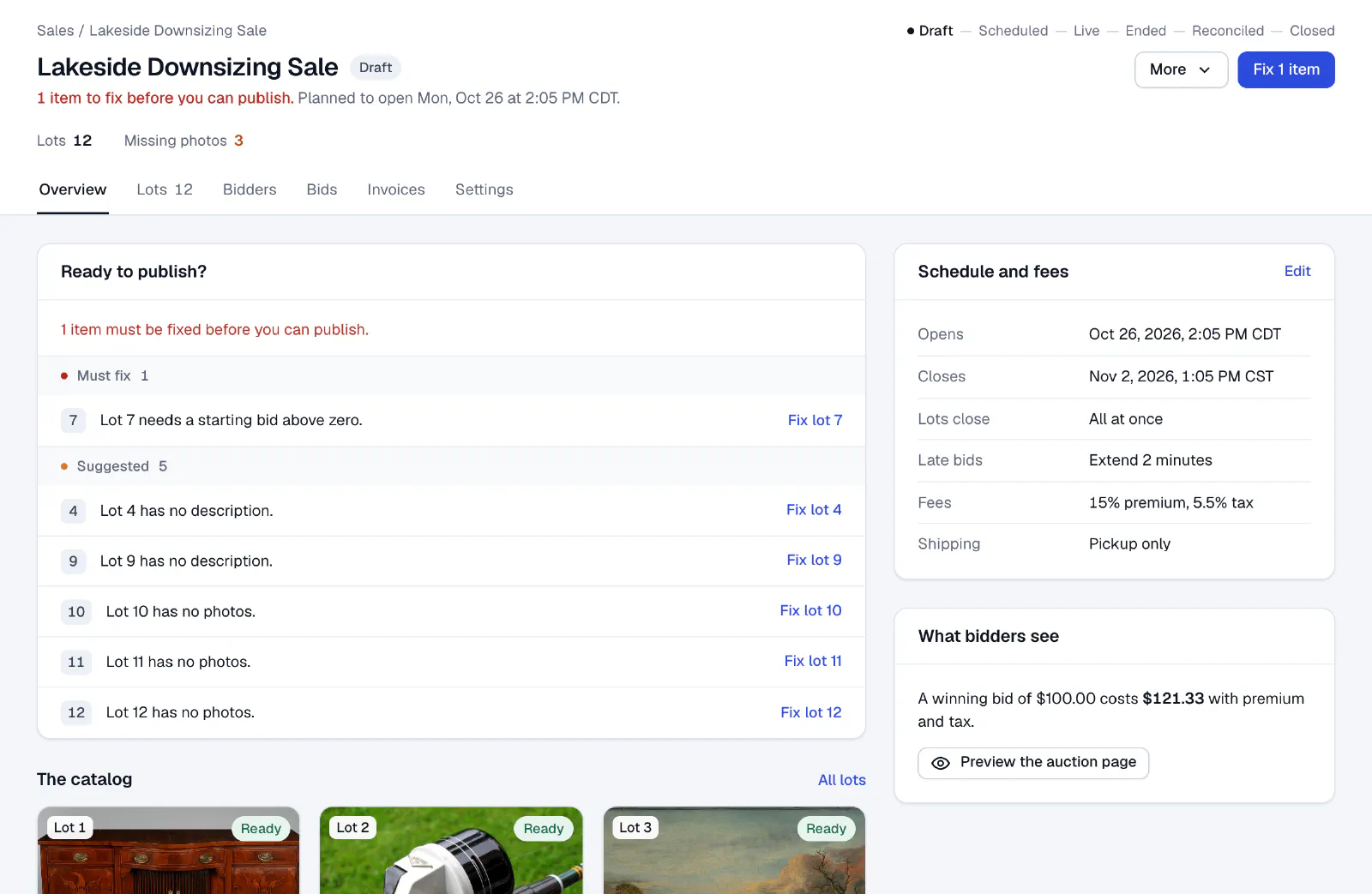
A draft sale in the AuctionZu console. A Ready to publish card lists one must-fix item and five suggestions, each with a link to the lot, beside the sale's schedule and fees.
  1. Every sale shows where it is: draft, scheduled, live, ended, reconciled, closed.
  2. One primary button, always the next thing to do.
  3. Publish checks name the problem and link to the lot that has it.
  4. See a bidder's all-in cost, with premium and tax, before you publish.
2Run

Watch the sale without refreshing ten tabs.

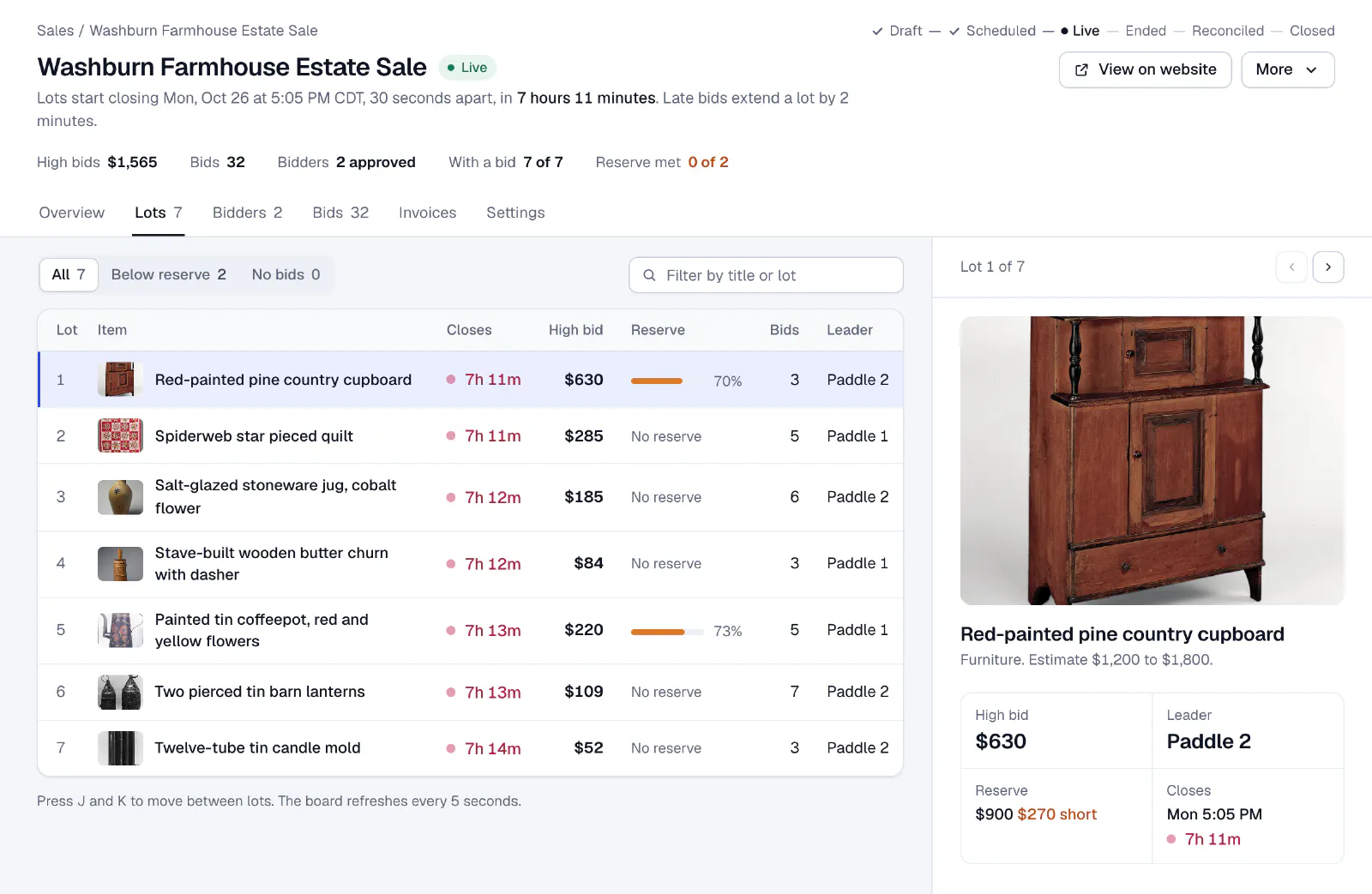
The live board puts every lot, its high bid, its reserve and its closing time on one screen. Bids are checked by the server, so you watch for exceptions instead of policing the rules.

The live board for an estate sale: seven lots with closing countdowns, high bids, reserve progress bars and leading paddles, with the selected lot's details and bid history in a side panel.
  1. Filter to what needs you: lots below reserve, lots with no bids.
  2. Reserve progress and the closing countdown on every row.
  3. The selected lot's high bid, leader and how far short of reserve it is.
  4. J and K move between lots; the board refreshes itself.

3Close

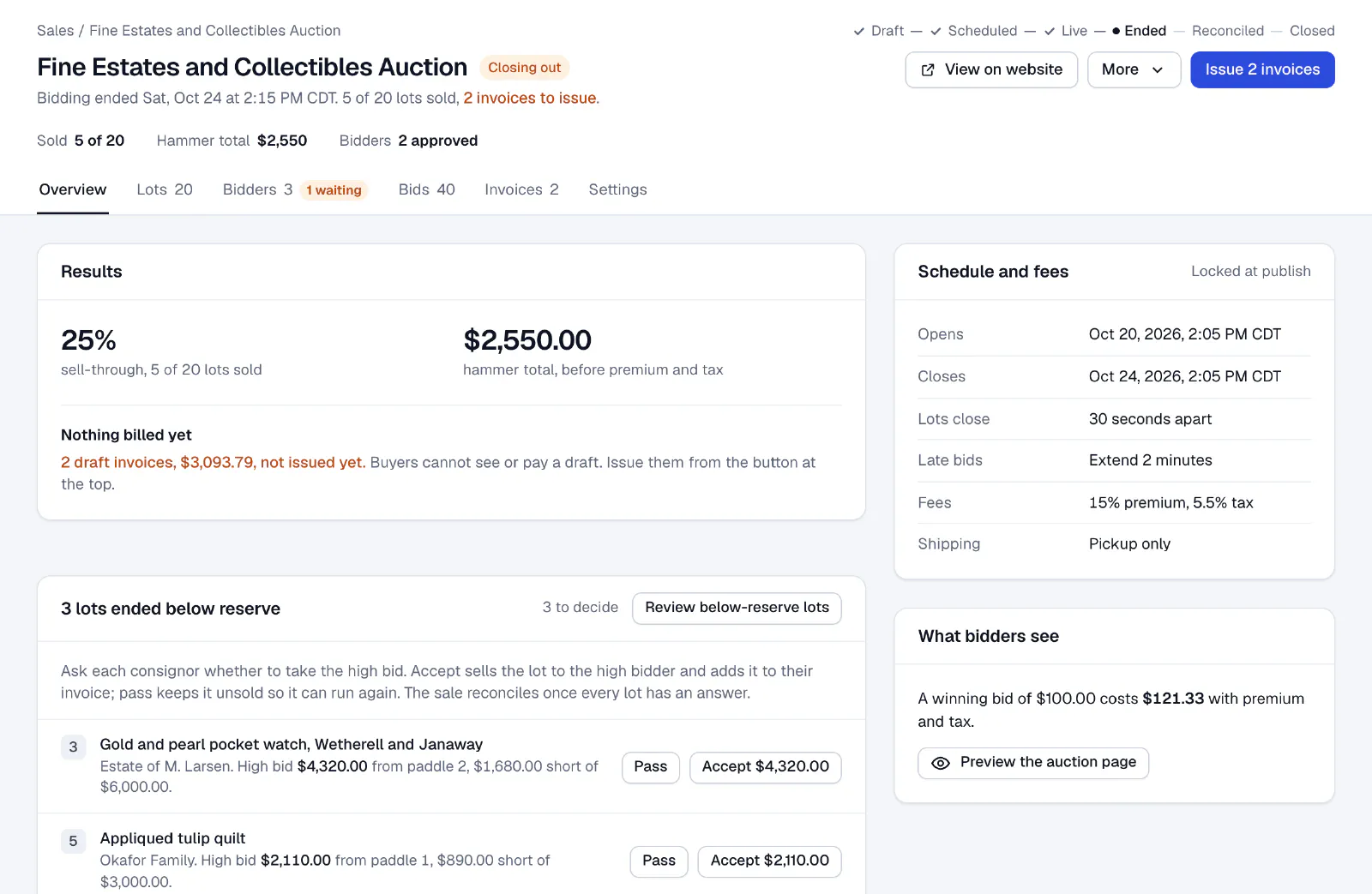
When bidding ends, the invoices are already drafted.

Winners are determined as each lot closes, and their invoices are drafted with premium and tax itemized. Below-reserve lots wait for your call, with the consignor's numbers in front of you.

An ended sale in the console: results with sell-through and hammer total, a note that two invoices are drafted but not issued, and three below-reserve lots each with Pass and Accept buttons.
  1. Drafted invoices are one click from being issued.
  2. Sell-through and hammer total as soon as bidding ends.
  3. Accept or pass below-reserve lots, one decision per lot.

4Collect

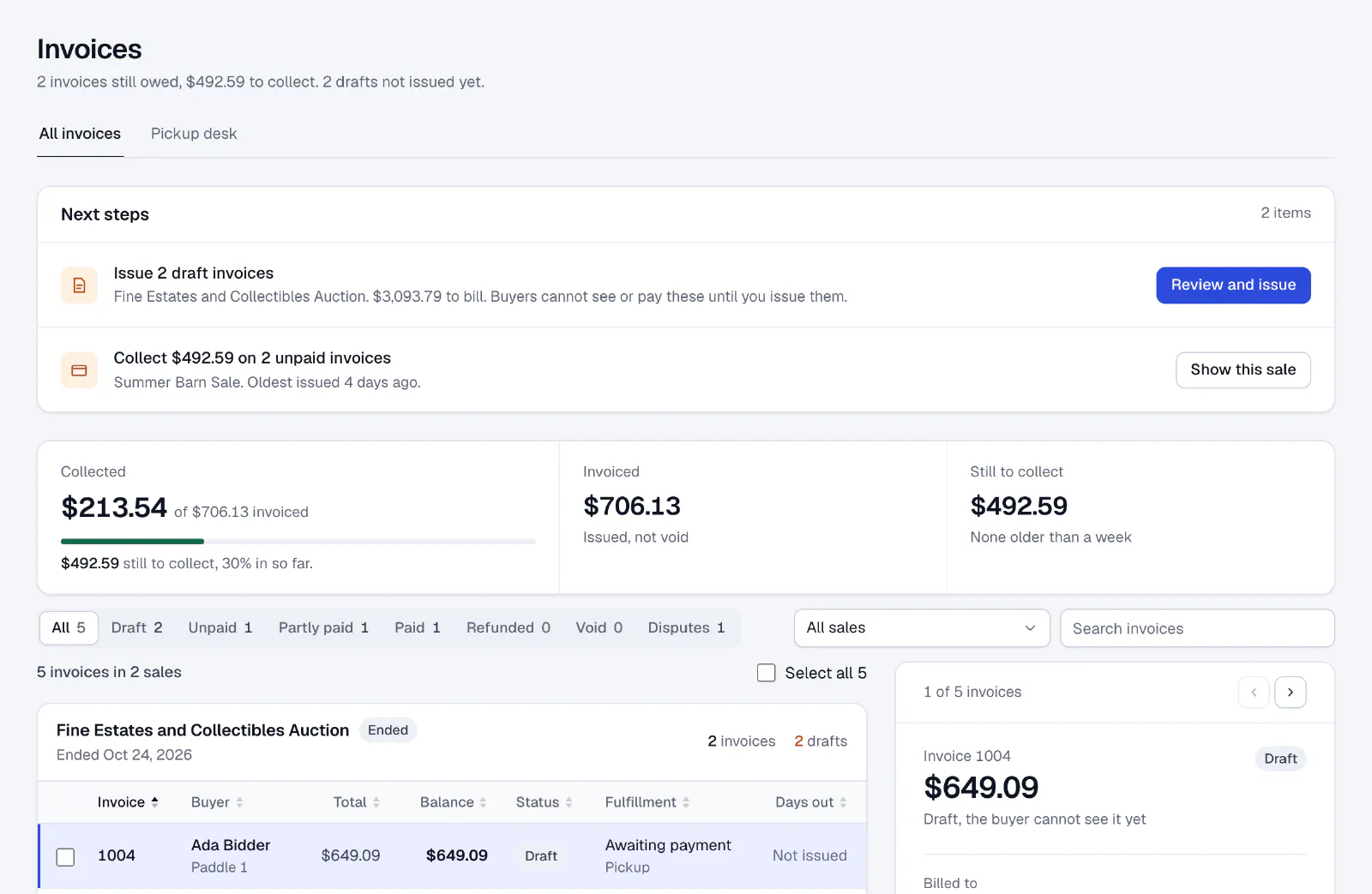
Know who has paid, who has not, and who can pick up.

Card payments record themselves when a buyer pays online. Cash and checks take one entry. Pickup waits until a balance is zero, so nothing leaves the building unpaid.

The invoices screen: next steps to issue two drafts and collect two unpaid invoices, a collected-of-invoiced progress bar, status filters including disputes, and invoices grouped by sale.
  1. Next steps tell you what money work is waiting.
  2. Collected against invoiced, at a glance.
  3. Every invoice by status, disputes included.

5Settle

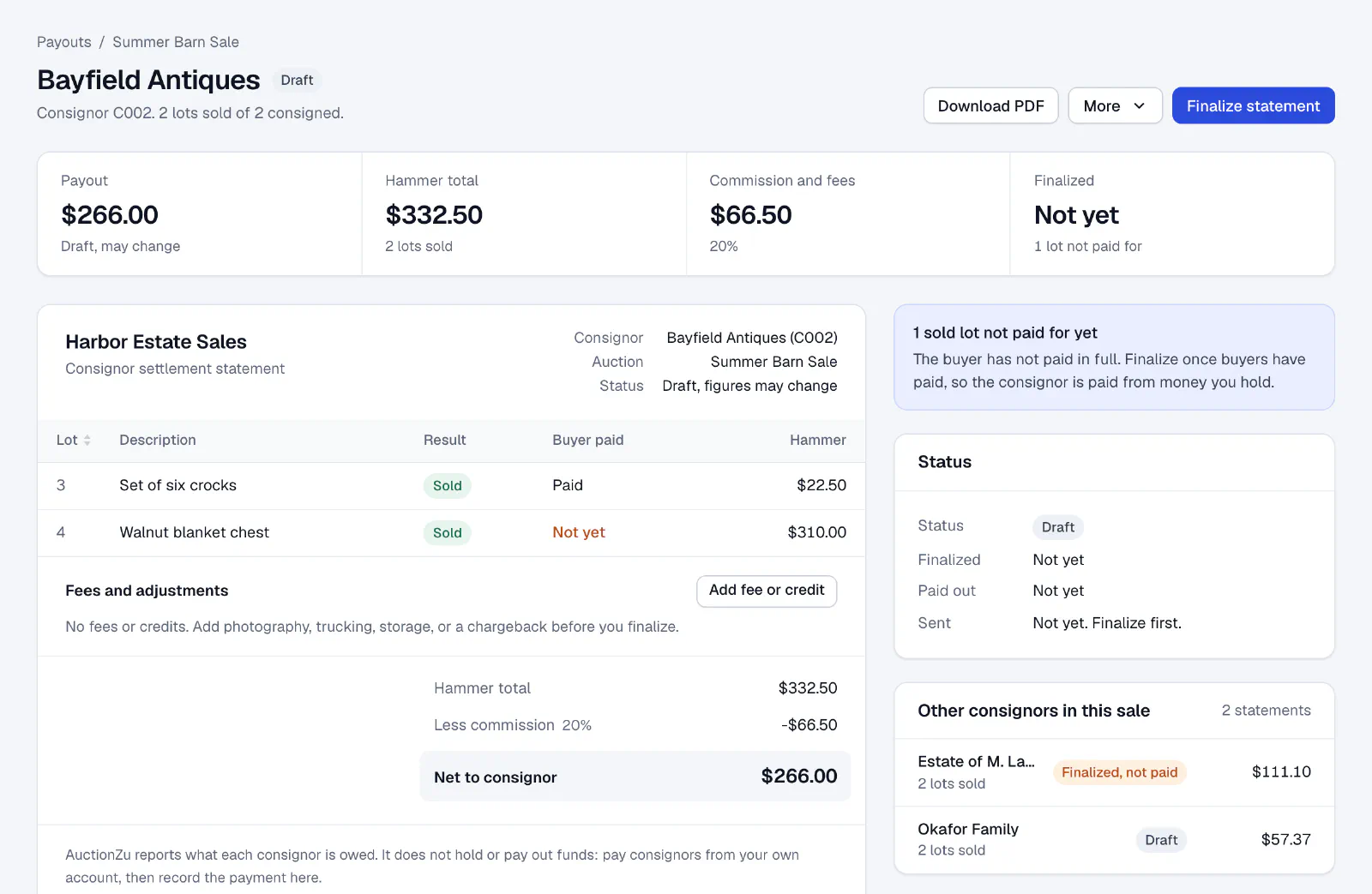
Consignor statements that write themselves.

Each consignor's statement is built from what sold and what buyers actually paid. Add a trucking or photography fee, finalize, and pay them from your own account.

A draft consignor statement: lots sold with whether each buyer has paid, hammer total, commission, and net to the consignor, with a warning that one sold lot is not paid for yet.
  1. Finalize when it is right; until then, the figures stay a draft.
  2. A warning when a buyer still owes on a consigned lot.
  3. Hammer, commission and net to consignor, calculated for you.

The busiest hours take the fewest clicks.

Sale day is a line at the door and a queue of registrations. The screens for those moments are built for the keyboard and for one person working fast.

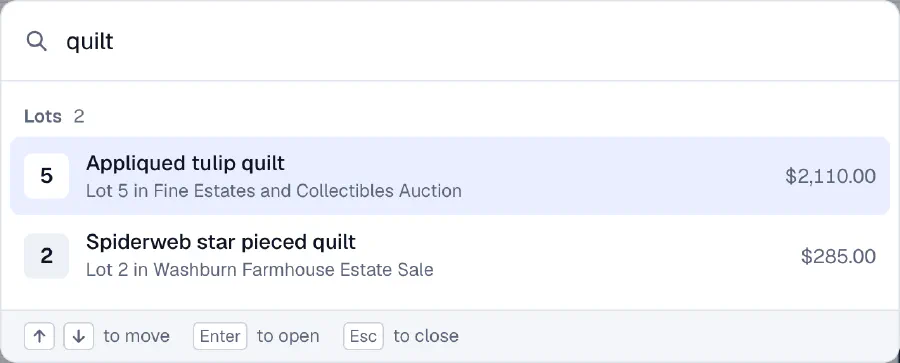
  • The jump palette searching for quilt: two lots from two different sales, with their lot numbers and amounts.

    Jump to anything

    Press Cmd K and type a lot, a bidder or an invoice. Every sale is searched at once.

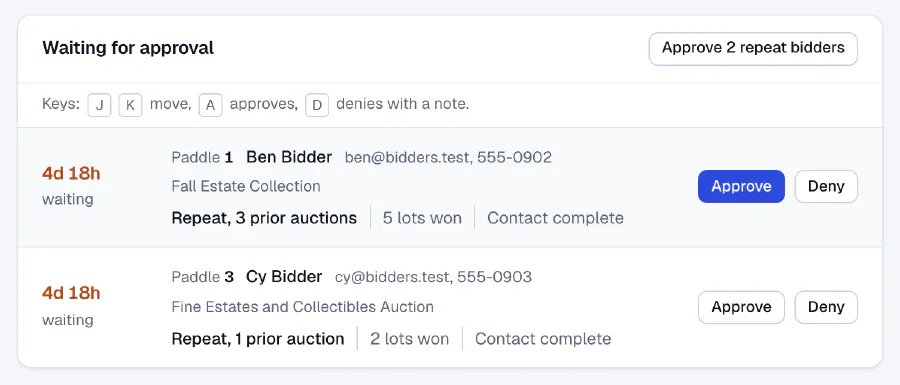
  • The bidder approval queue: two waiting bidders, each with their sale, prior auctions and lots won, and keyboard hints for moving, approving and denying.

    Approve bidders from the keyboard

    J and K move through the queue, A approves, D denies with a note. Repeat bidders show their history.

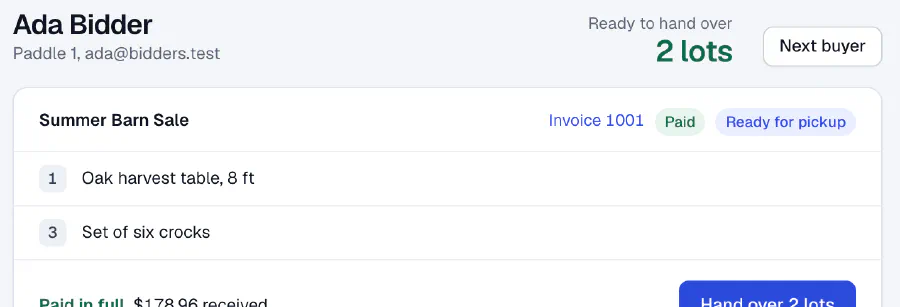
  • The pickup desk: a search by paddle or name, a paid buyer ready for pickup, and their two lots with a Hand over button.

    A pickup desk for the line at the door

    Type a paddle number, take any balance, and hand over exactly the lots that buyer won.

Ready to run your next auction?

Tell us how you run sales today, and we will walk you through a sale on AuctionZu from the catalog to the consignor payout.